
Getting started
The frame around every page: sidebar, search, alerts, account.
Around every page
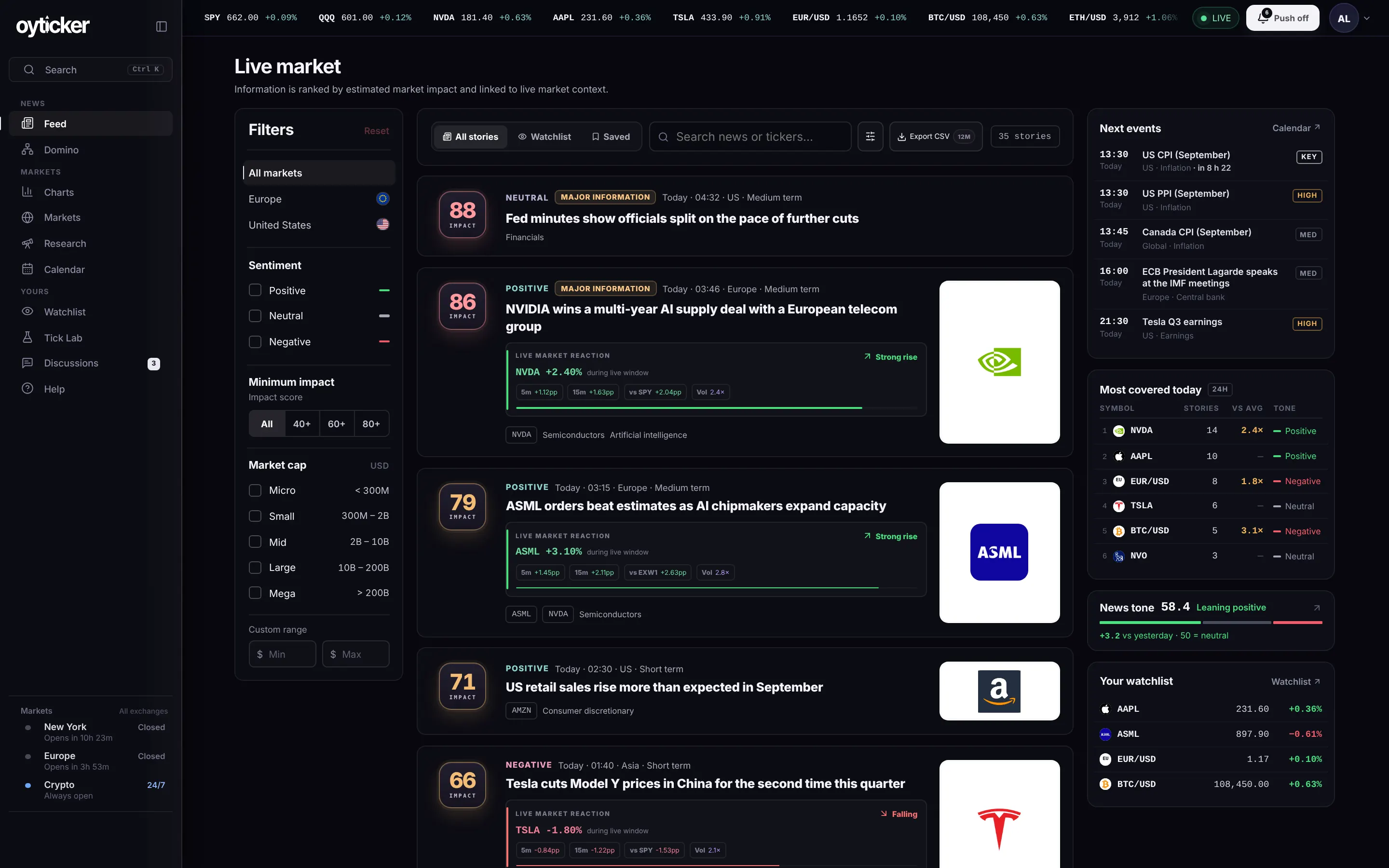
The sidebar and the top strip stay in place on every page. Only the middle changes.
Search, the ten sections, and the market hours at its foot.
Eleven markets, from the S&P 500 to the US 10-year yield, refreshed every 30 seconds. It stops under the pointer.
LIVE: pages update without a reload. Then the bell with what you have not read, and your account.
The sidebar
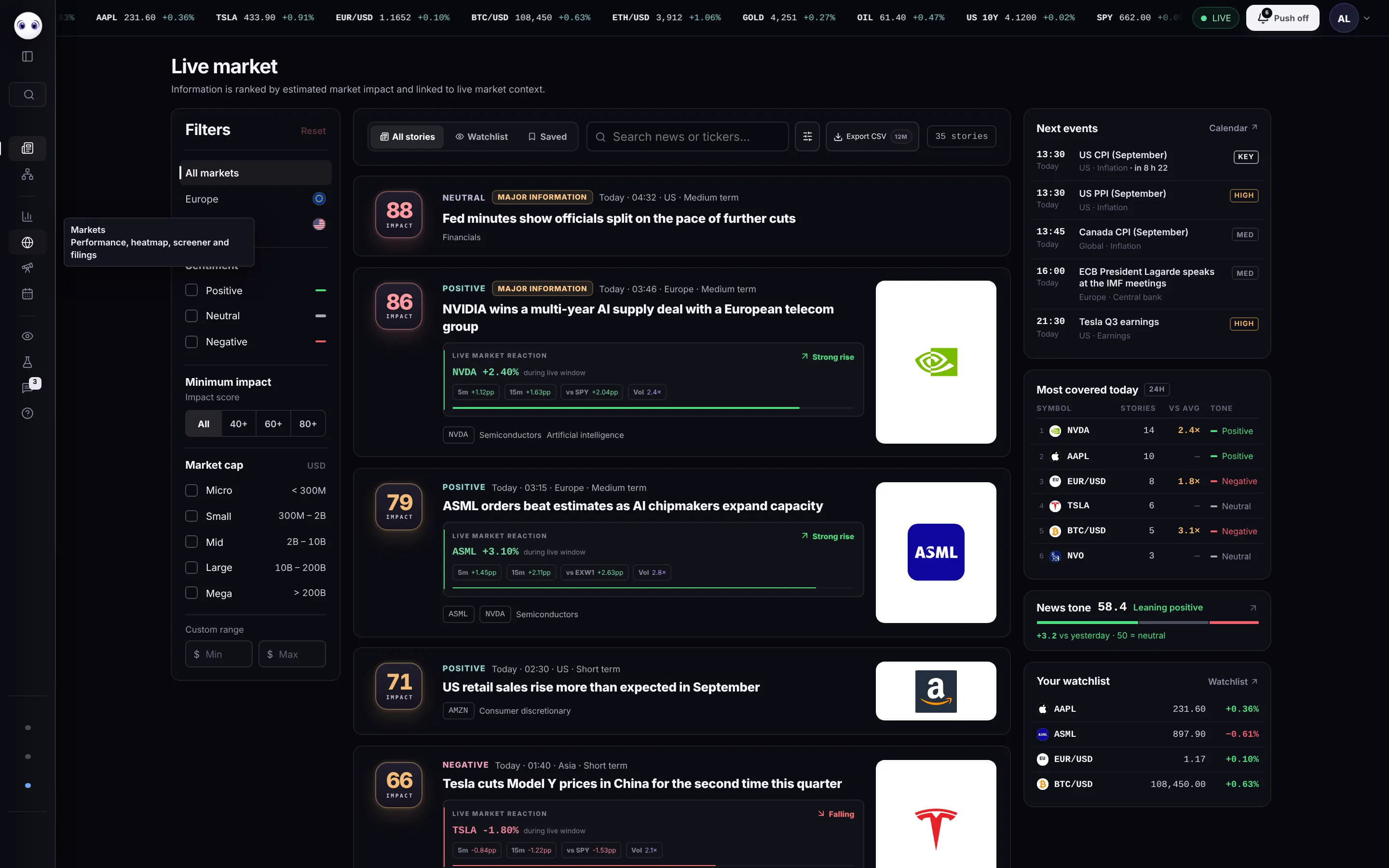
In three groups: News, Markets and Yours. The lit one is the page shown.
The private messages, replies and mentions you have not read.
The button beside the logo, the
[key, or a click on the sidebar's right edge.Each icon names its section under the pointer. The choice is remembered on this browser.
The mascot takes the logo's place and reacts to a click. The button under him opens the sidebar again.
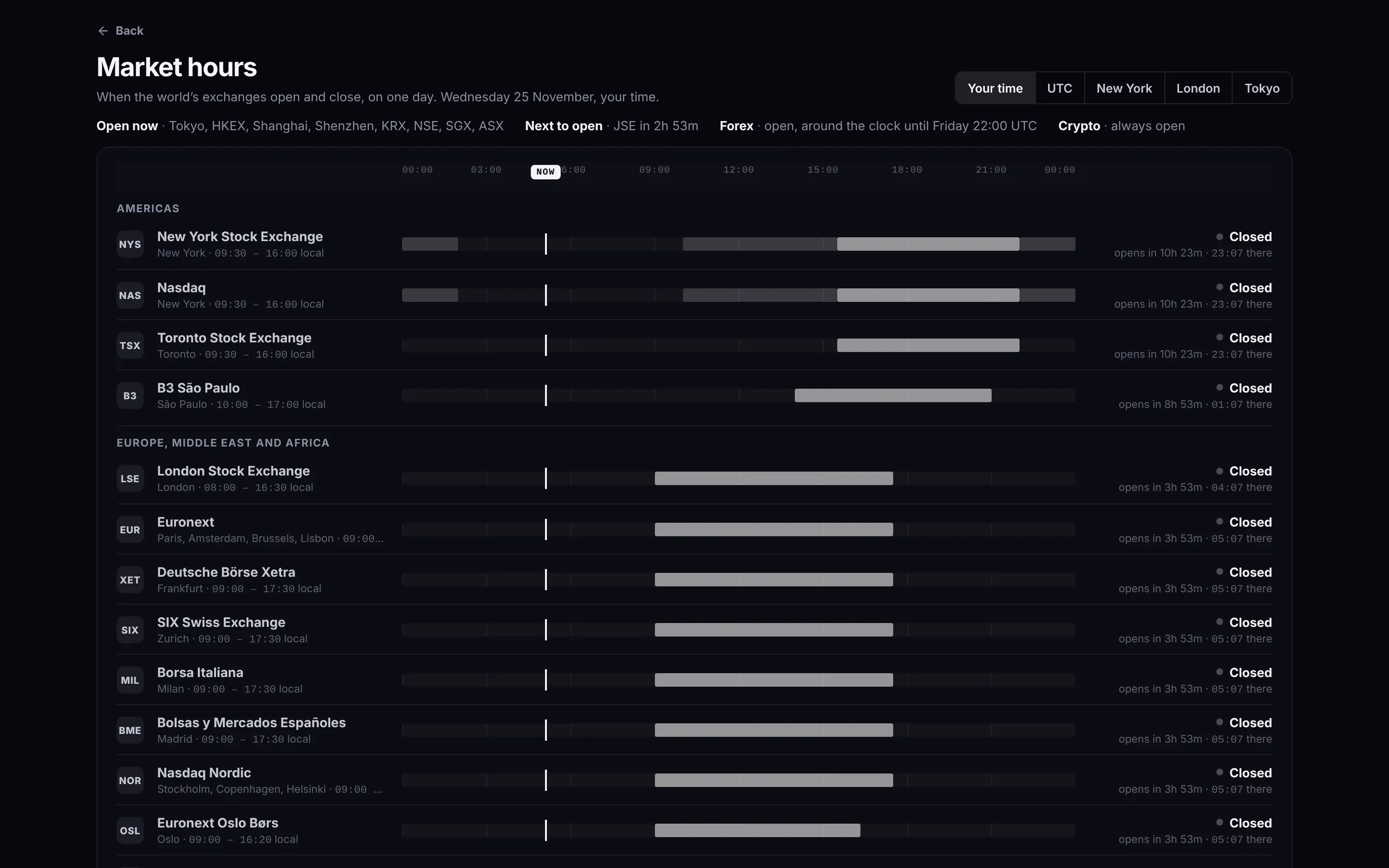
New York, Europe and crypto: their state now, and the time left before the next open or close.
The exchanges open at this minute and the next to open. Forex and crypto follow on the same line.
One line each, by region: the regular session on the day and the state now.
Your time, UTC, New York, London or Tokyo.
- [
- Open or close the sidebar
- GF
- Feed
- GD
- Domino
- GC
- Charts
- GK
- Markets
- GR
- Research
- GE
- Calendar
- GW
- Watchlist
- GT
- Tick Lab
- GM
- Discussions
- GH
- Help
G then the letter, one after the other, on a computer and outside a text field.
Quick search
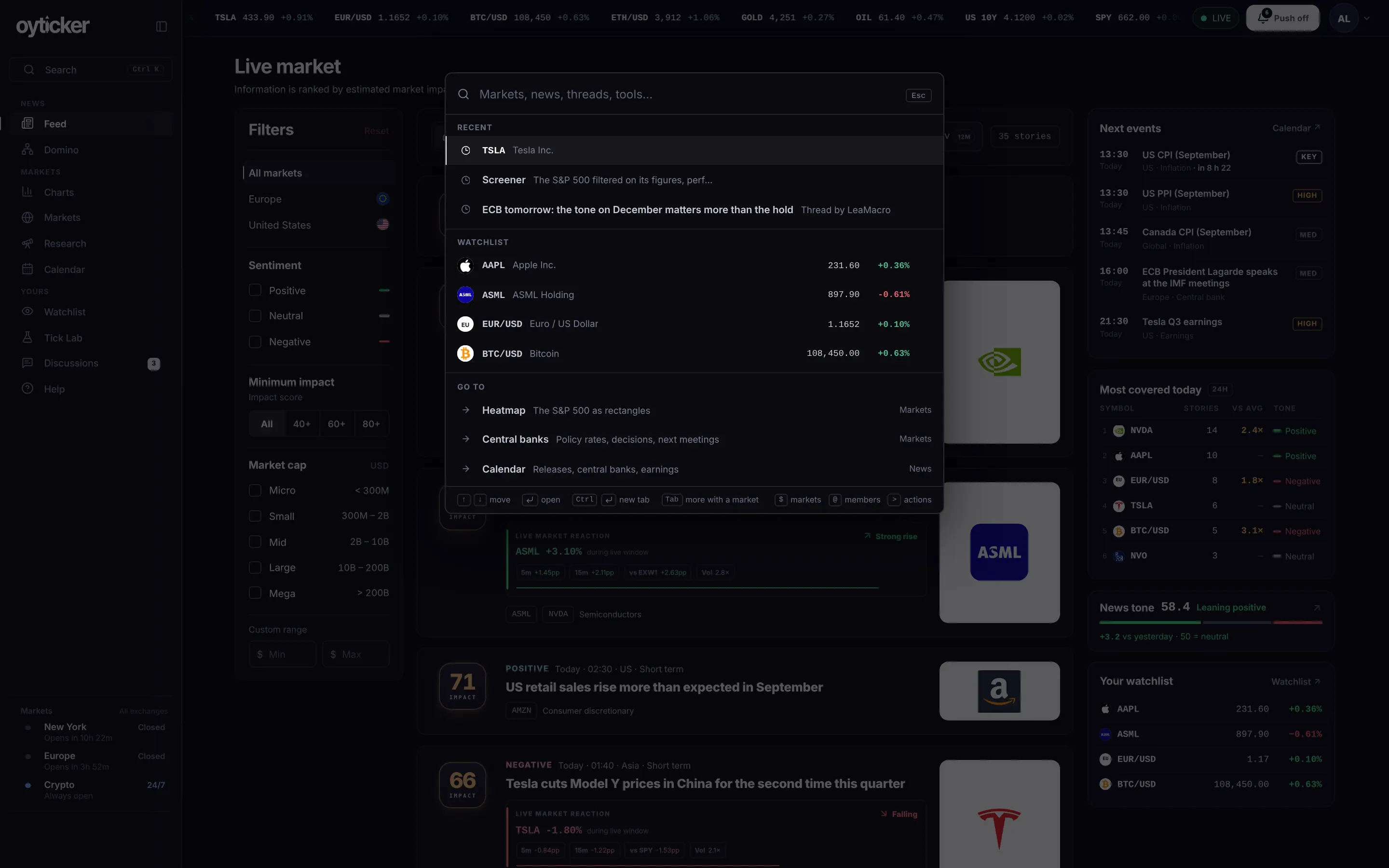
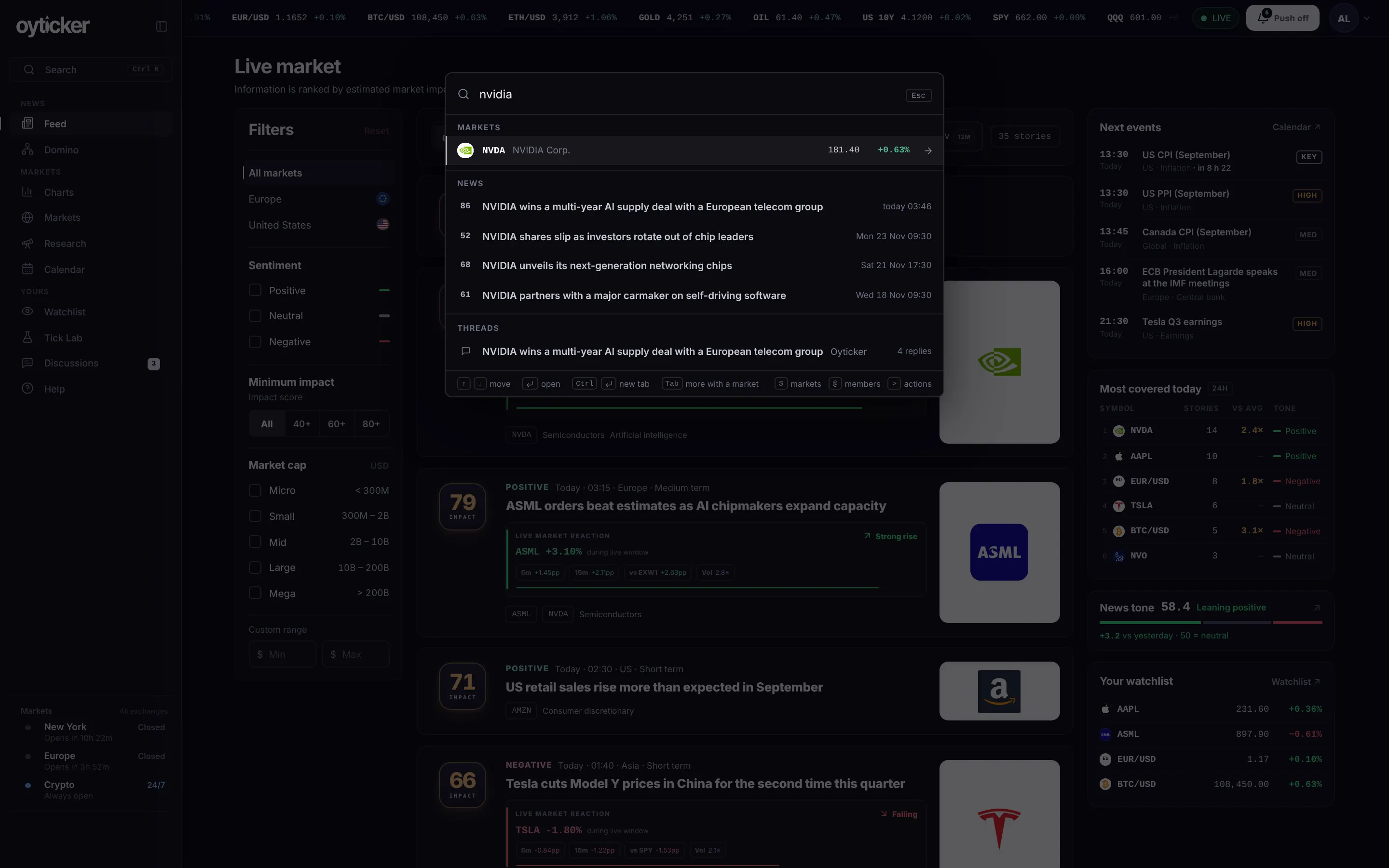
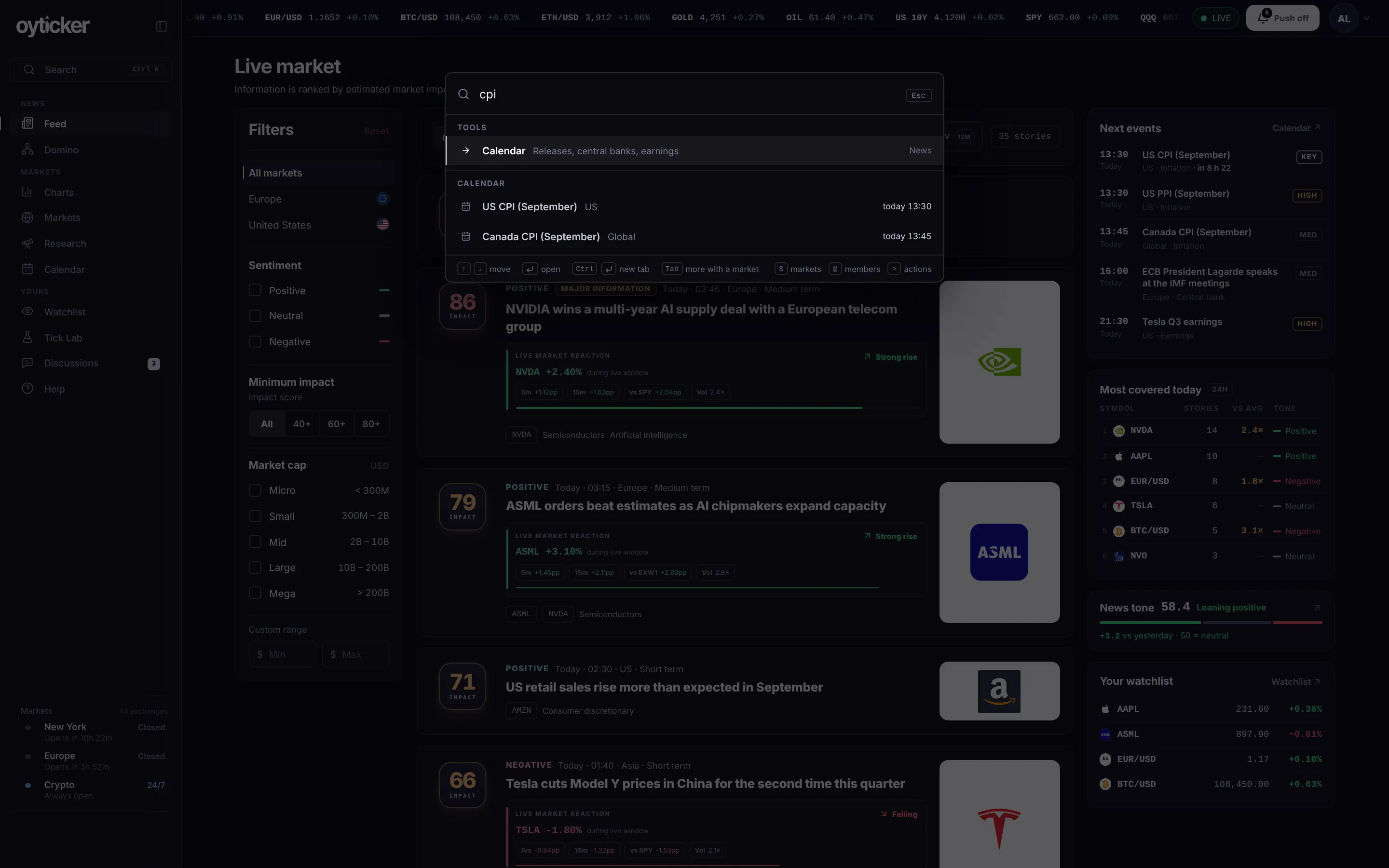
Search in the sidebar, or Ctrl+K (⌘K on a Mac) from any page, even while typing.
Your recent choices on this device, your watchlist with its prices, and a few tools.
Its price and its move on the day. Enter opens its page.
Those that hold the words typed, each with its impact score. From three letters.
Threads of Discussions found by their title, their markets or their text.
A word also finds the tool that deals with it, and the Calendar's releases, the next ones first.
Arrows move, Enter opens, Ctrl+Enter opens in a new tab, Esc closes.
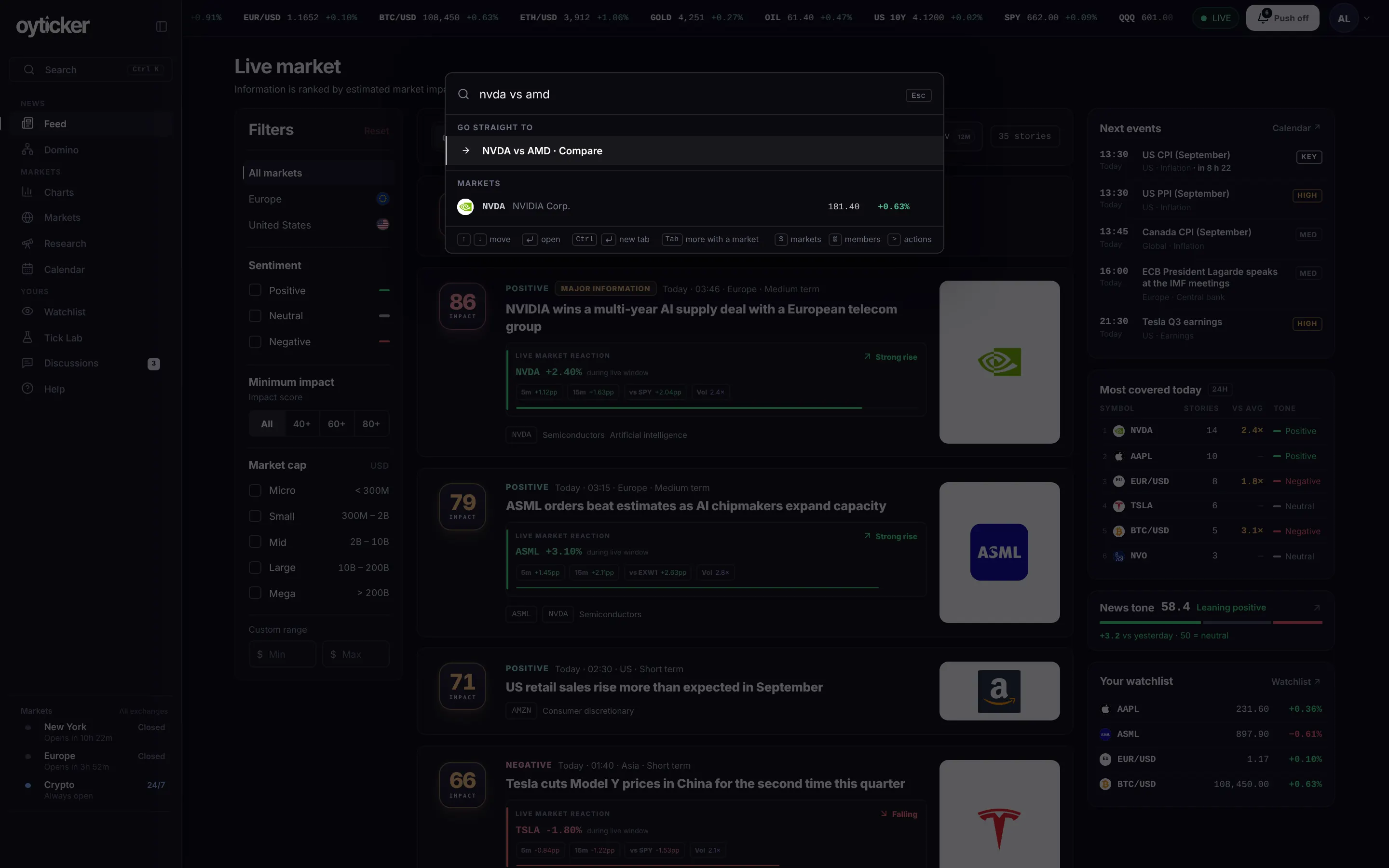
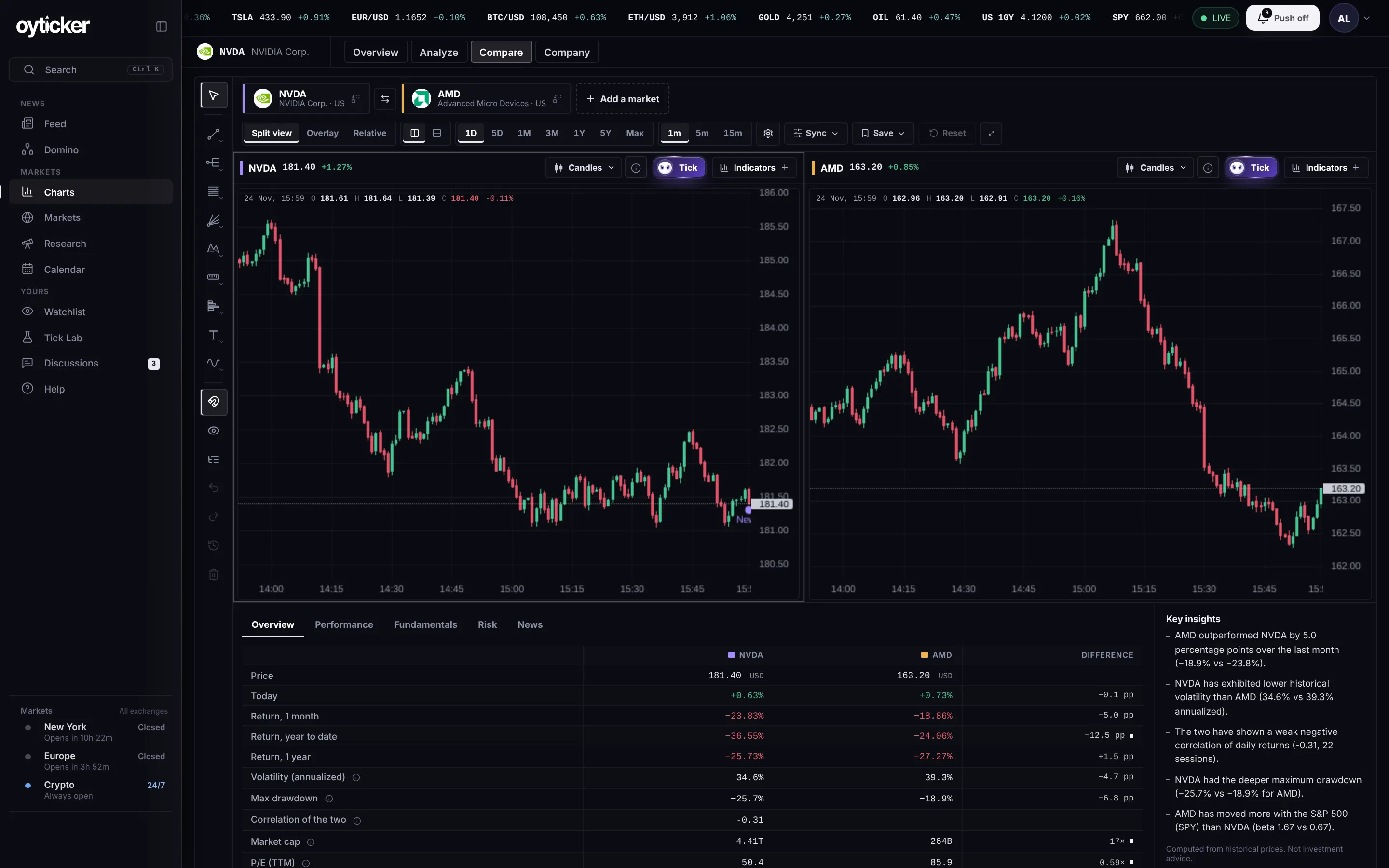
nvda vs amd: the first row opens both in Compare.NVIDIA and AMD side by side, with their figures under the charts.
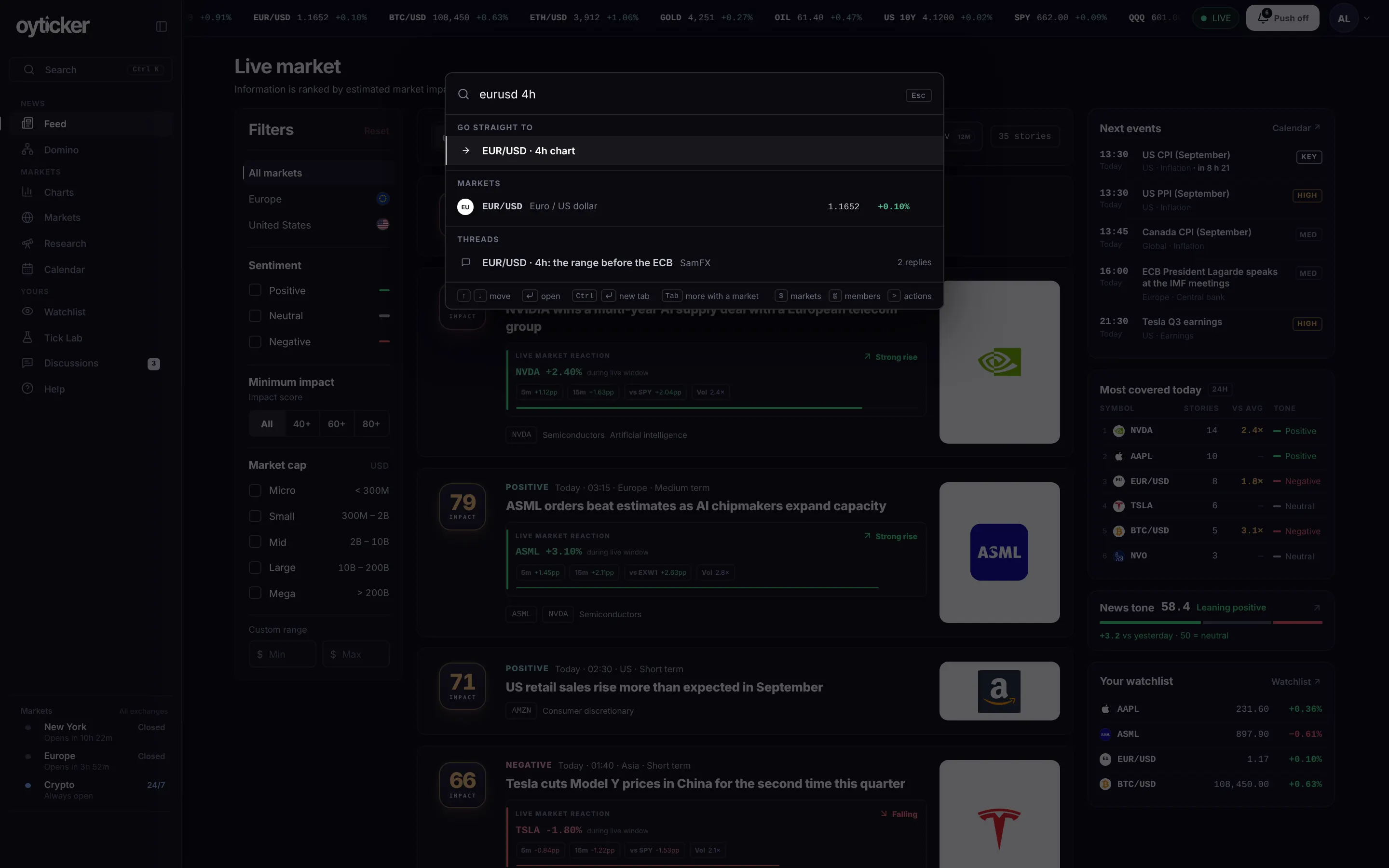
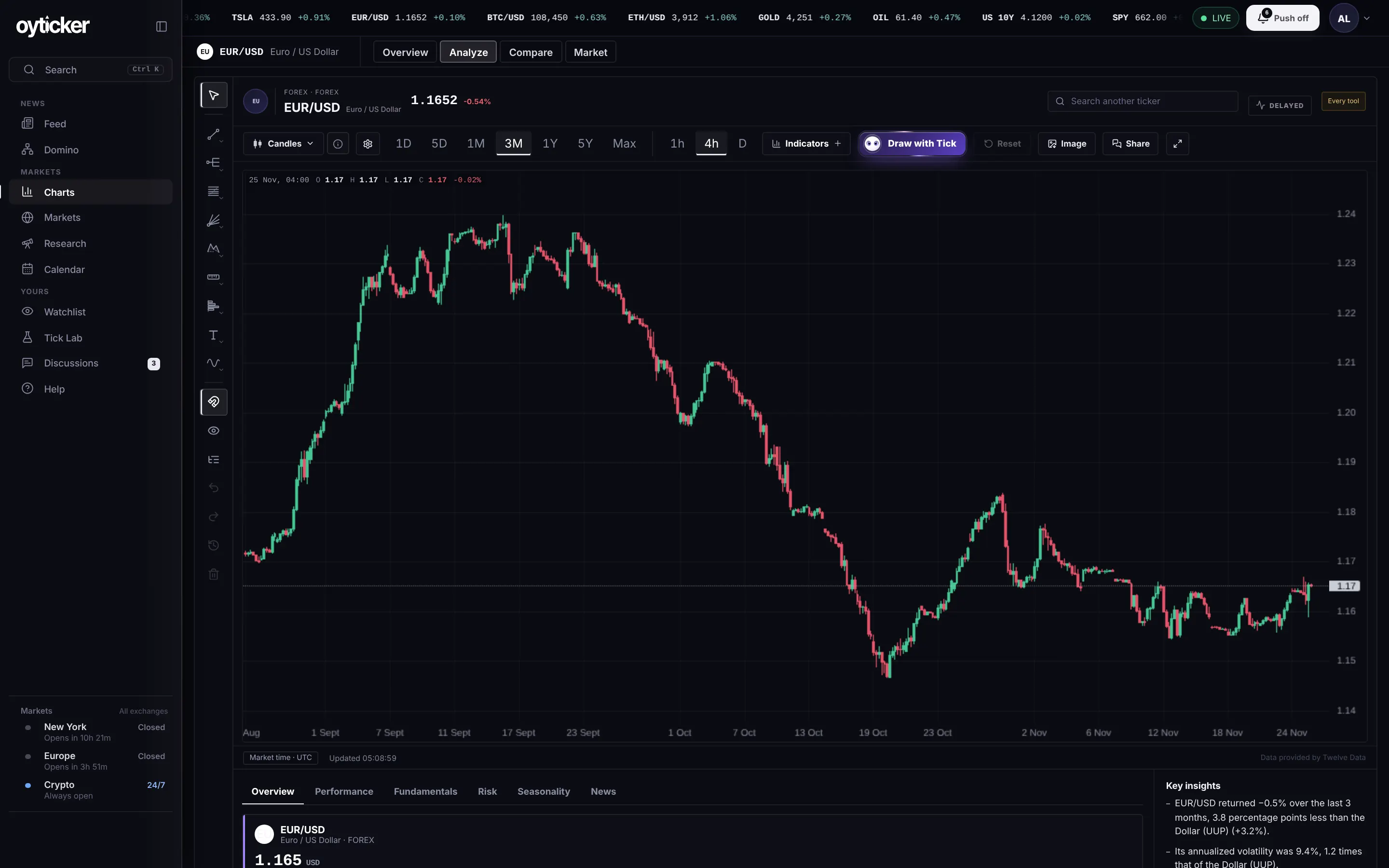
eurusd 4h: the chart on four-hour candles. The search reads 1m, 5m, 15m, 1h, 4h, 1d, 1w and 1M.Analyze opens on EUR/USD with 4h candles over three months.
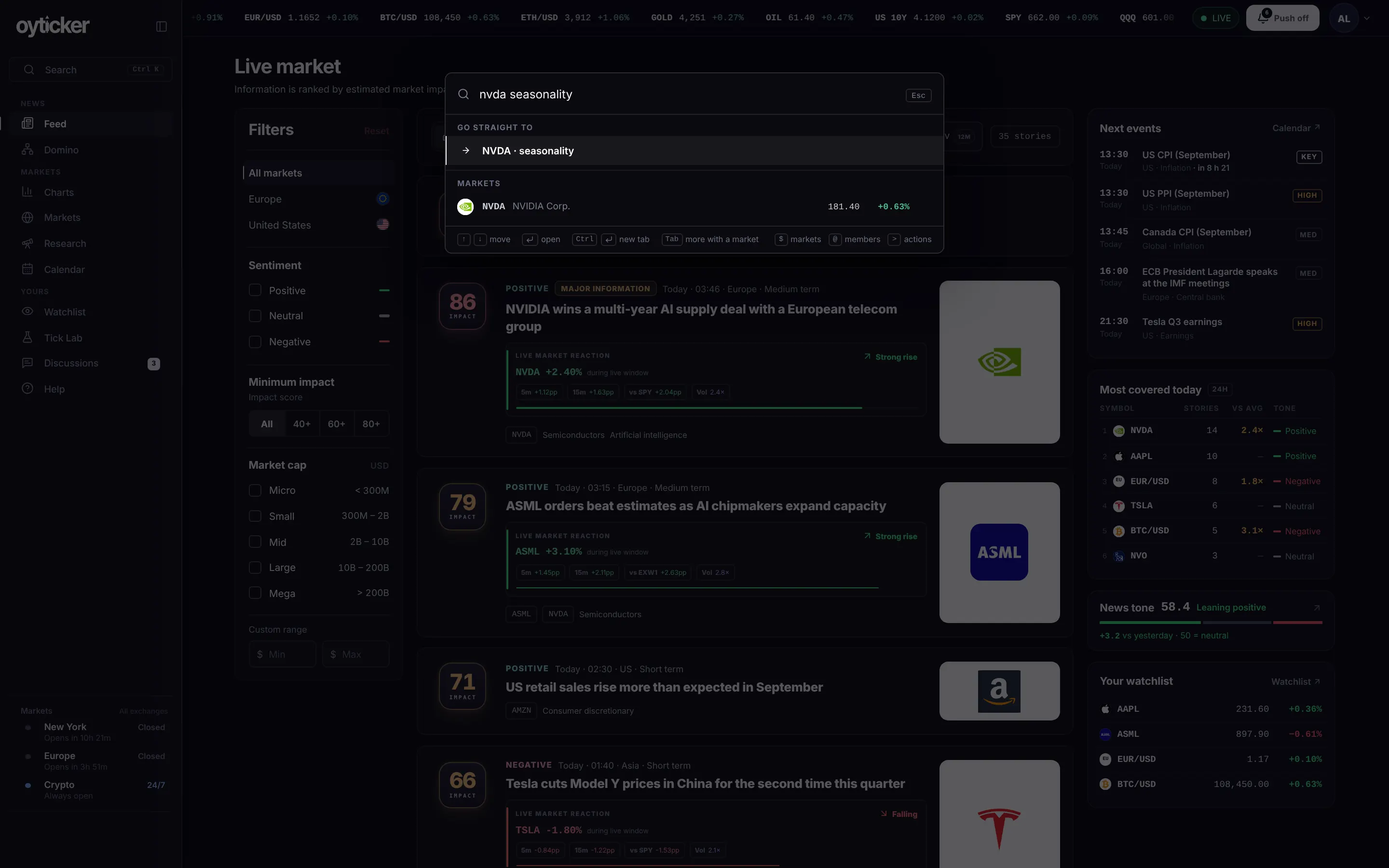
nvda seasonalitygoes straight there. The search also reads chart, compare, filings, page and watch.
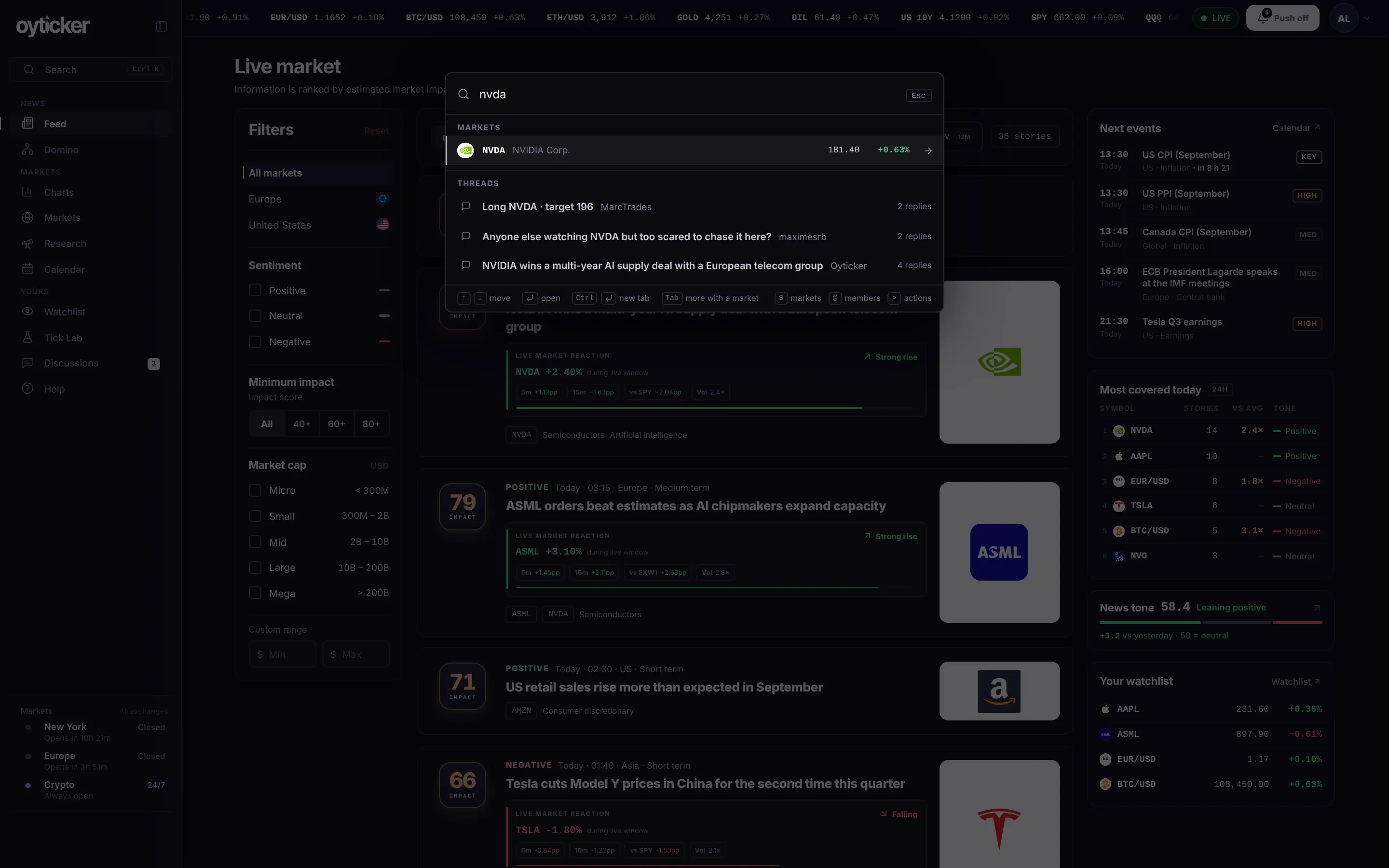
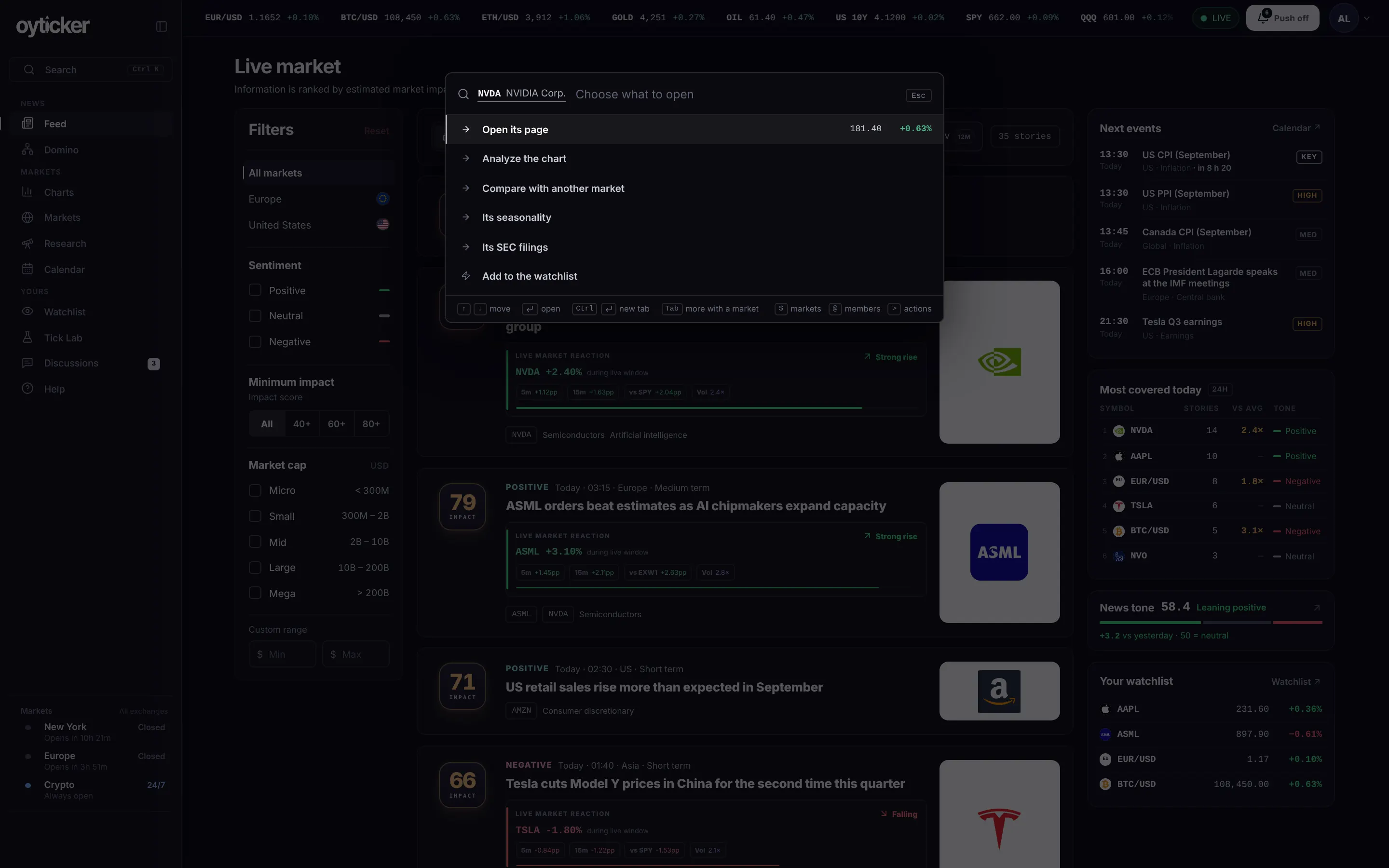
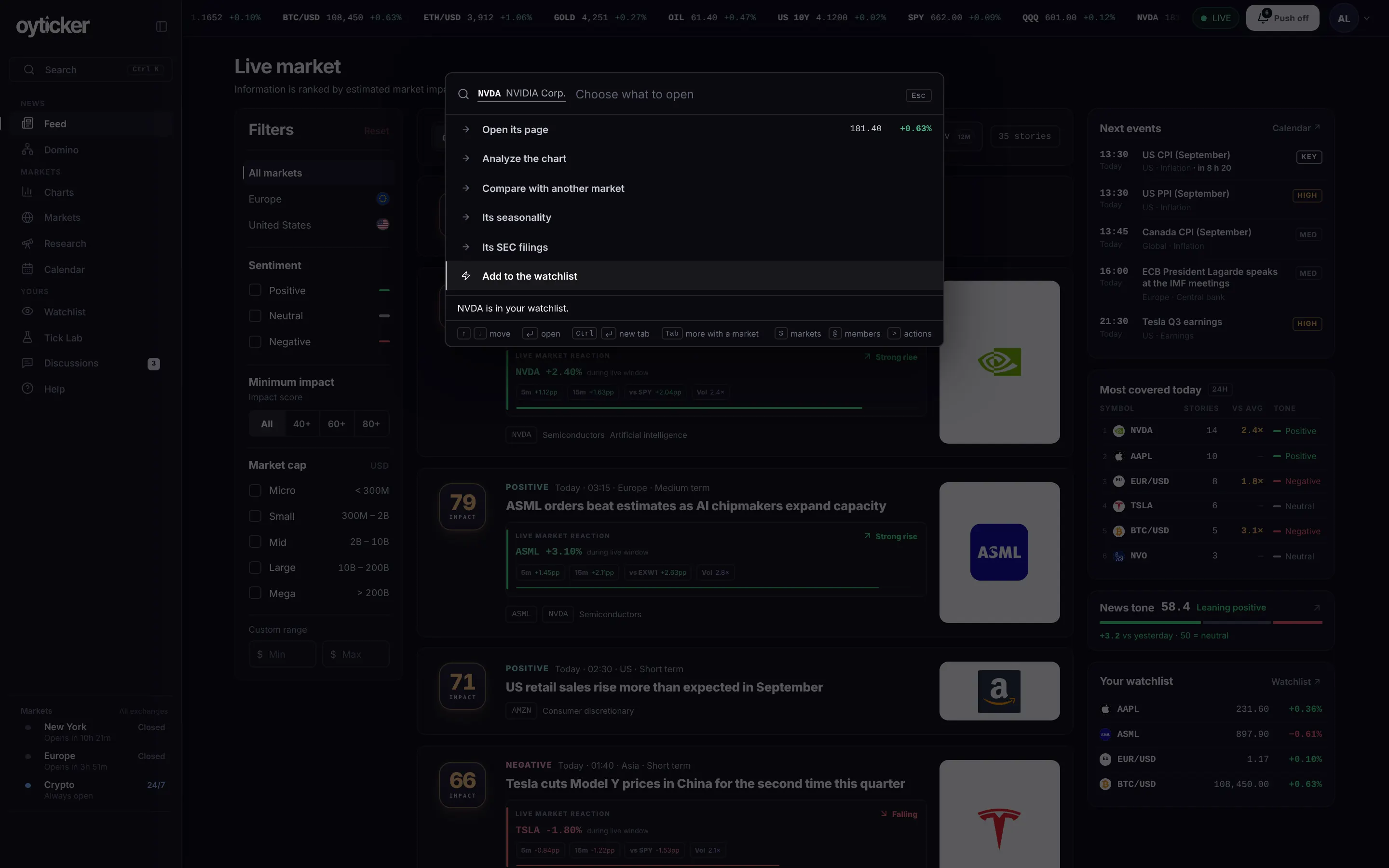
Tab, the right arrow, or the arrow at the end of its row.
Its page, the chart in Analyze, Compare, its seasonality, its SEC filings for a company, and the watchlist.
Shift+Tab, Backspace, or a click on the market's name.
Done here, without leaving the page you are on.
The panel says so, then closes.
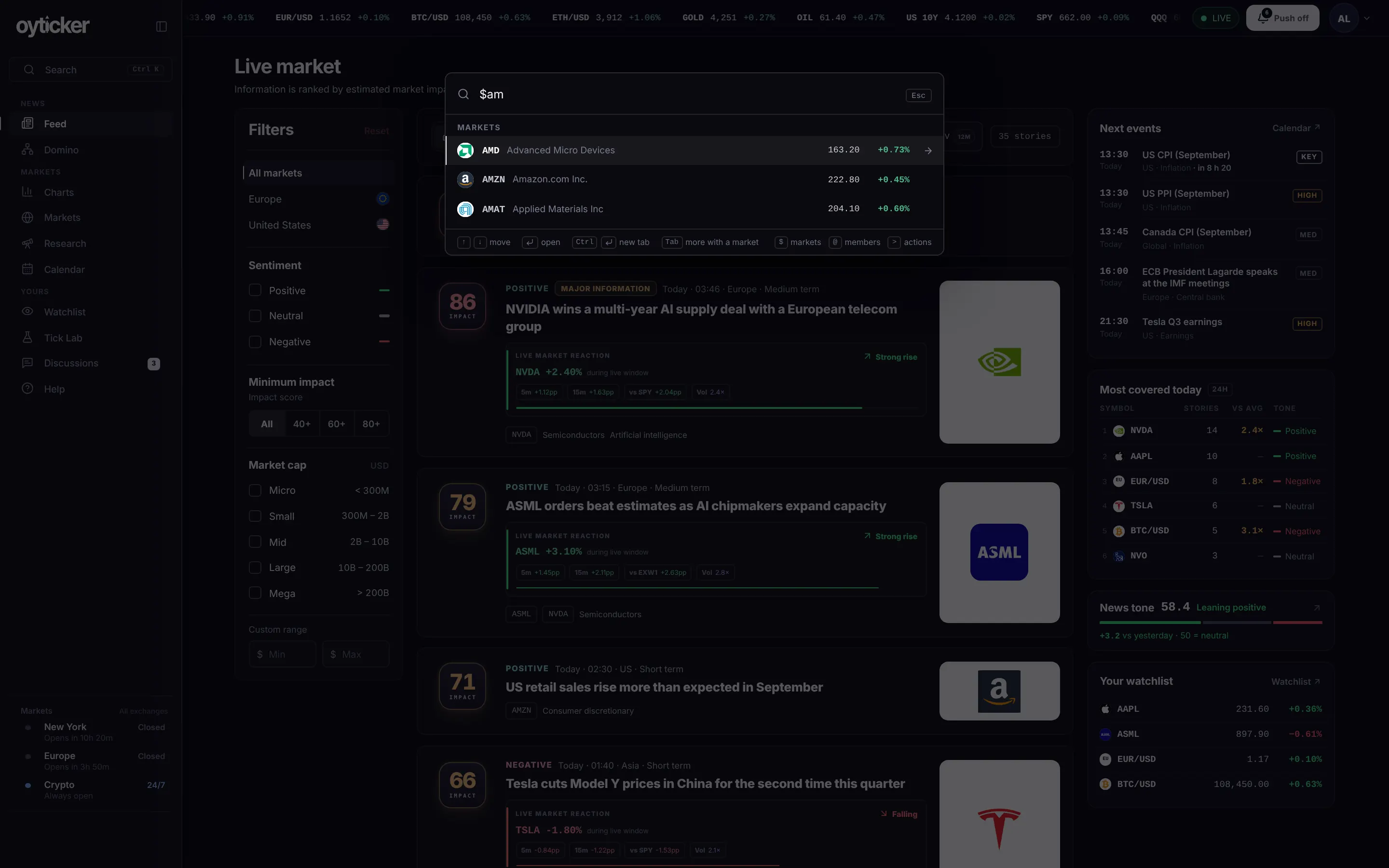
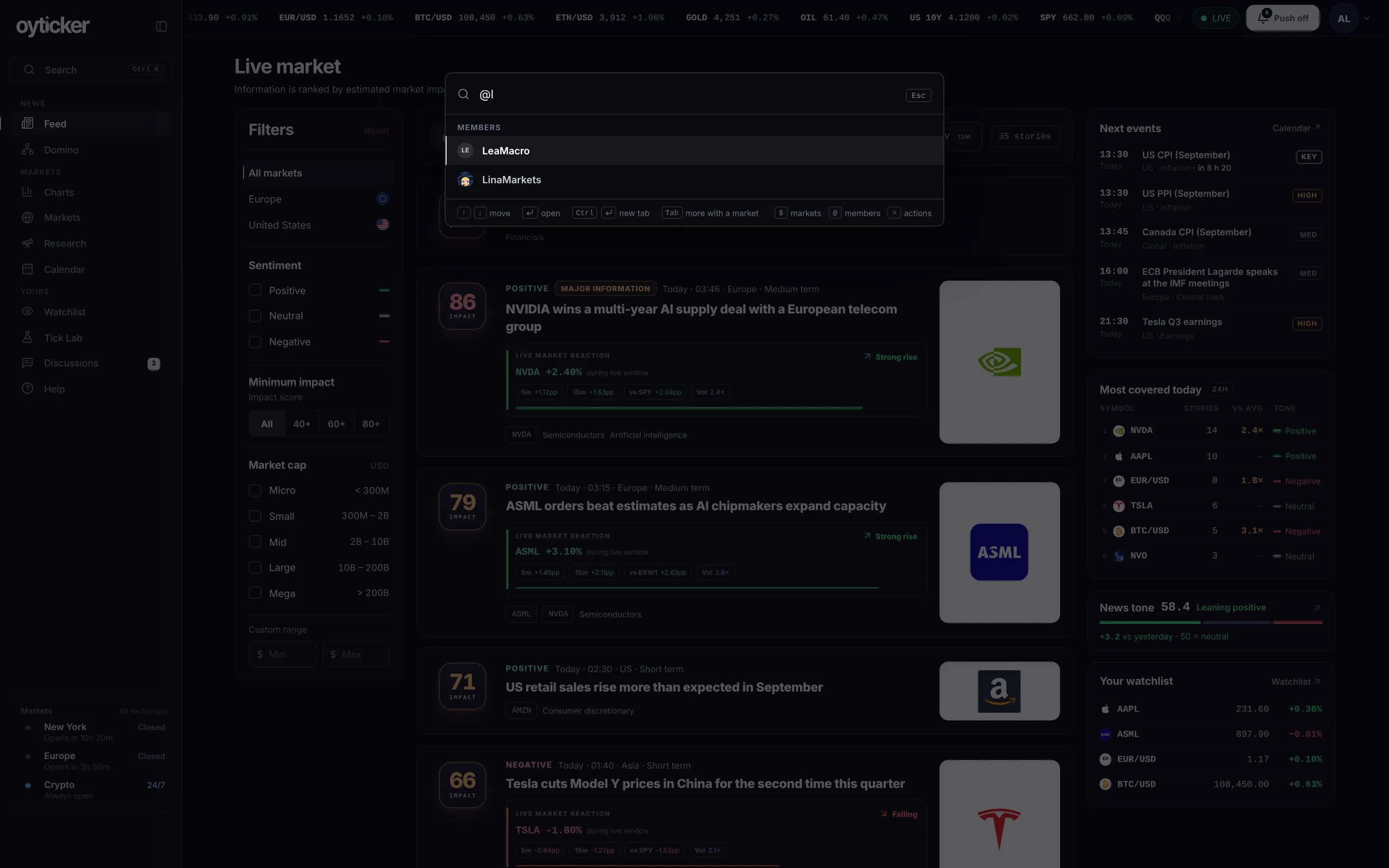
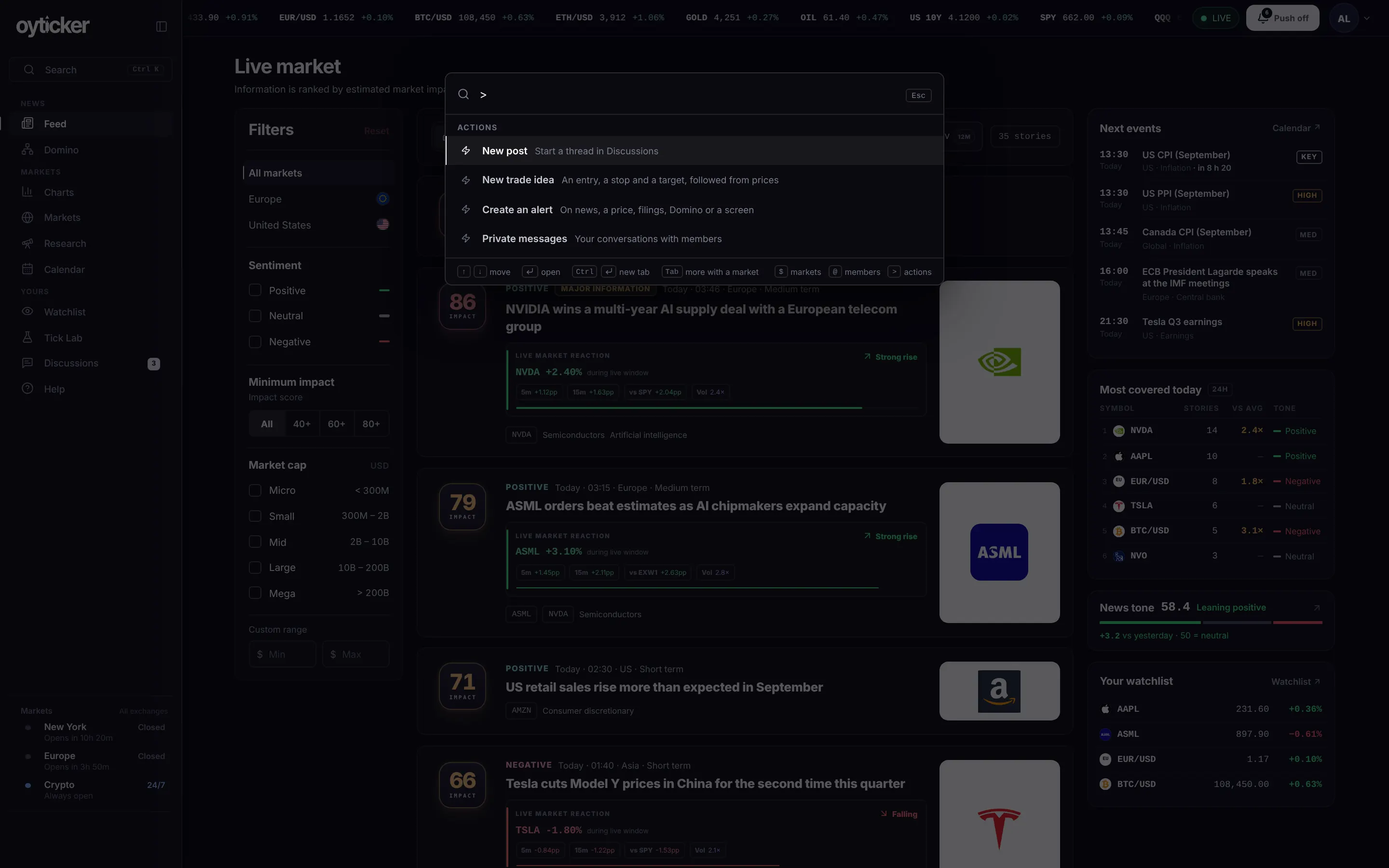
A first character narrows the search.
$lists markets only, up to eight.Members by their name. Enter opens the member's page in Discussions.
A new post, a new trade idea, an alert, or your private messages.
The three characters are listed at the foot of the panel.
- CtrlK
- Open or close the search (⌘K on a Mac)
- ↑↓
- Move in the results
- Enter
- Open the lit row
- CtrlEnter
- Open it in a new tab
- Tab
- What can be done with the lit market
- ShiftTab
- Back to the results
- Esc
- Leave a market, then close the search
The bell
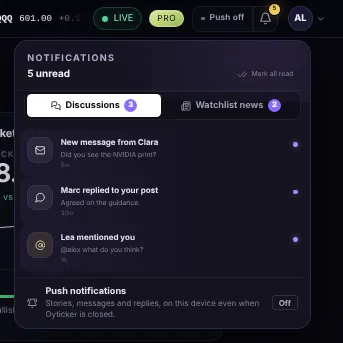
Its number is what you have not read. Push on or off, beside it, is this device's push setting.
The newest first, twelve at most.
A private message, a reply to you, a mention of your name.
What you set in Watchlist › Alerts: a price crossed, a filing, a screen.
Stories about the markets and sectors you follow.
A click on a line opens it and marks it read. Mark all read clears the number.
Opens this device's setting: which stories and alerts reach it while Oyticker is closed.
Push takes a minute to set up, and on a phone Oyticker must first be on the Home Screen: install the app and turn push on.
Your account
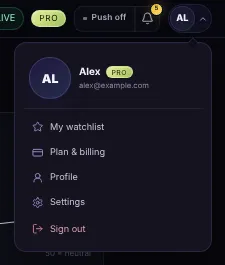
At the top right of every page.
Your username and the e-mail of the account.
Profile is your page in Discussions. Settings holds your preferences, your e-mails and the account itself.
Ends the session on this device.
Your page and Settings have their own guide: Account.
On a phone
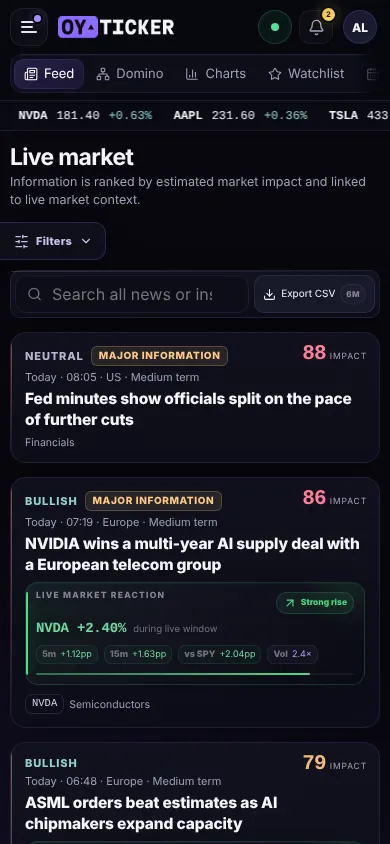
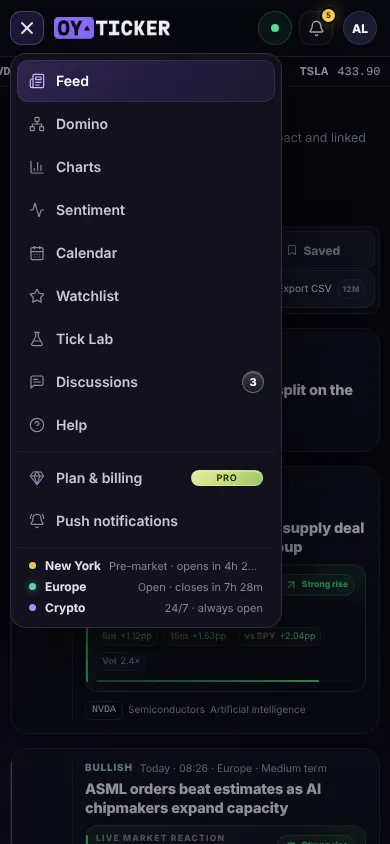
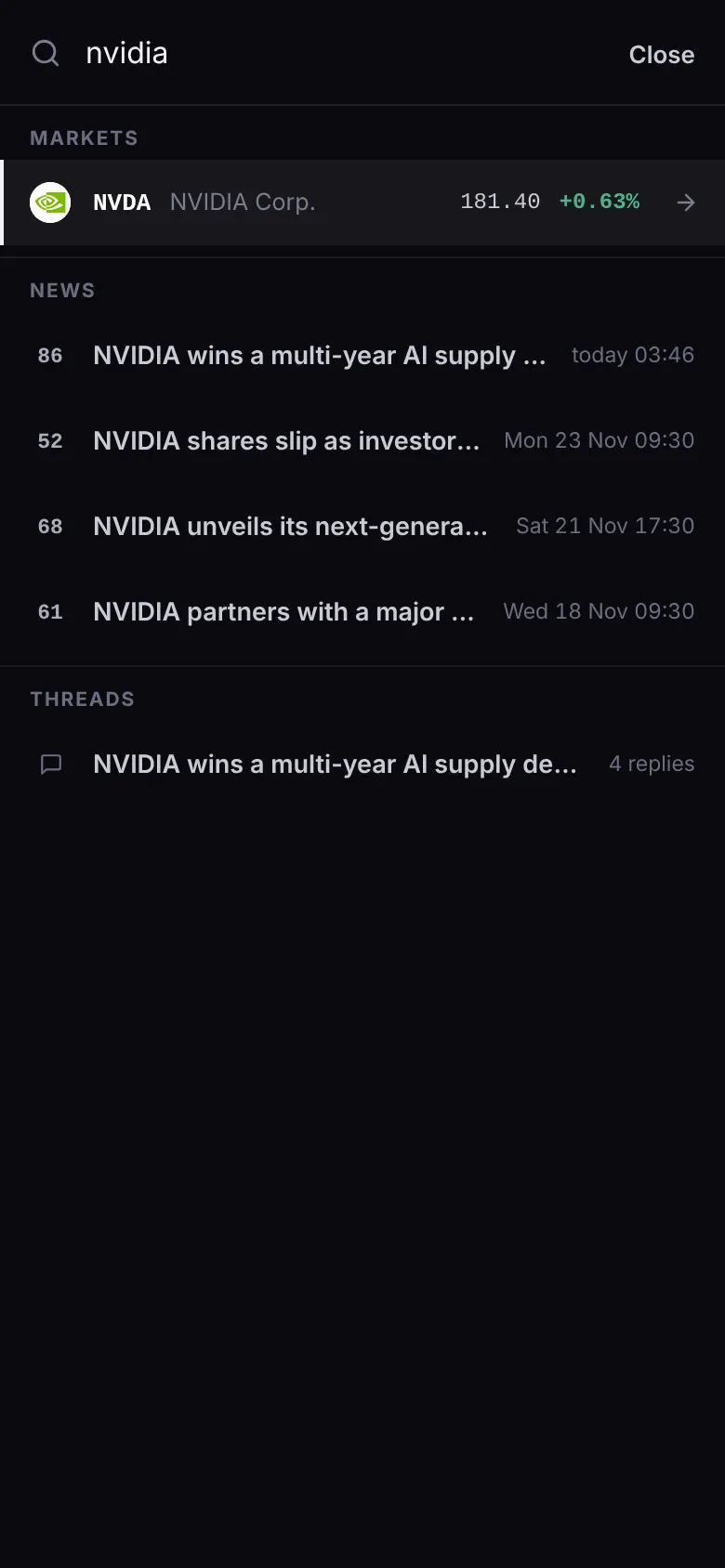
On a phone or a tablet the sidebar gives way to a bar. It hides while you scroll down and returns on the way up.
The same three as on a computer. The dot between them is LIVE.
Three bars at the top left. A dot on them: something unread in Discussions.
The same ten, in the same three groups.
On a phone, push works from the app on the Home Screen.
The three markets, and the page of every exchange.
The magnifier opens the quick search on the whole screen.
Putting Oyticker on the Home Screen, step by step for iPhone and Android: Install the app.
The screens show simulated prices and stories.