
Feed
The Feed is Oyticker's live stream of market news. Each story is analysed as it comes out: an impact score from 0 to 100, a tone (positive, neutral or negative), the markets it concerns and, when it moves them, the live market reaction. Click a story to read Oyticker's full analysis next to the list.
The Feed at a glance
Stories arrive at the top, newest first, without reloading the page: a short Feed updated note tells you when one comes in. 50 stories per page; the page numbers are at the bottom.
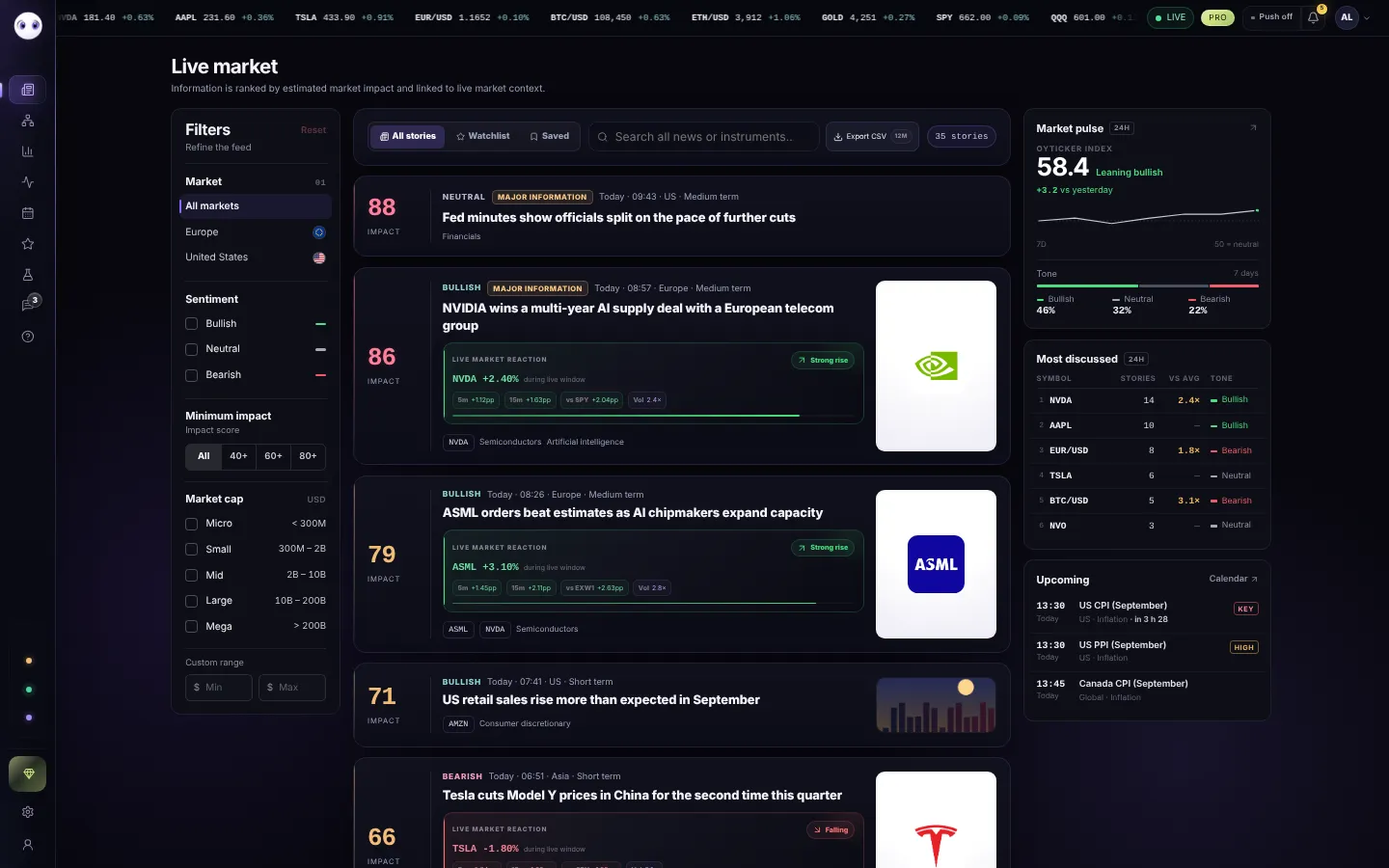
- FiltersMarket, tone, minimum impact and market cap. Explained just below.
- All stories, Watchlist, SavedEvery story, only the stories about your watchlist, or the ones you saved to read later.
- SearchA company, a ticker, a sector or a theme, across all the history your plan opens.
- Export CSVProUp to 12 months of stories, with your filters, in a spreadsheet.
- A storyImpact, tone, time, region, title and the markets it concerns. Click to read it.
- Market pulseThe tone of the last 24 hours of news, from 0 (negative) to 100 (positive). Click it for the full Sentiment page.
- Most discussedThe markets with the most stories in 24 hours, and how unusual that is.
- UpcomingThe next three events of the Calendar, with a countdown for the first one.
Reading a story card
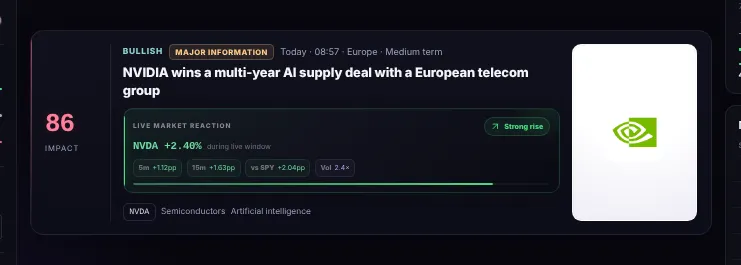
- Impact scoreHow much the story may move the markets it concerns, from 0 to 100: 40+ relevant, 60+ high, 80+ major. It says how important the story is, not which way prices go.
- Tone and timePositive, neutral or negative for the markets concerned, then when it came out, the region and the horizon (short, medium or long term).
- Market reactionOnce a story is out, Oyticker follows the price of its main market for up to 4 hours: the move at 5 and 15 minutes, against its benchmark, and the volume.
- Markets and sectorsThe tickers and sectors the story concerns.
Filters and search
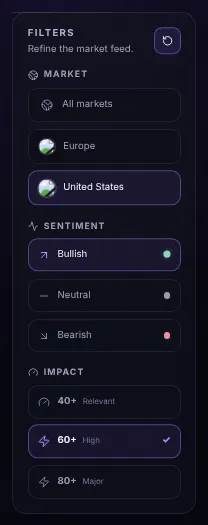
- MarketAll markets, Europe or United States.
- TonePositive, neutral or negative: tick one or several.
- Minimum impact40+, 60+ or 80+: the higher, the fewer and the more important the stories.
- ResetClears every filter and the search at once.
- Market cap: stories about a listed company of that size, in US dollars: Micro (under 300M) to Mega (over 200B), or your own range (type 500M, 2B…). Macro, currency and crypto stories have no company, so they are left out while it is on.
- Filters also apply to Watchlist, Saved and the CSV export.
- Choose the region and minimum impact the Feed opens with in Settings → Interface preferences.
Reading a story
On a computer, a story opens in a reading panel next to the list, so you can go from one to the next. Esc closes it; the browser's Back button too. On a phone, it opens on its own page.
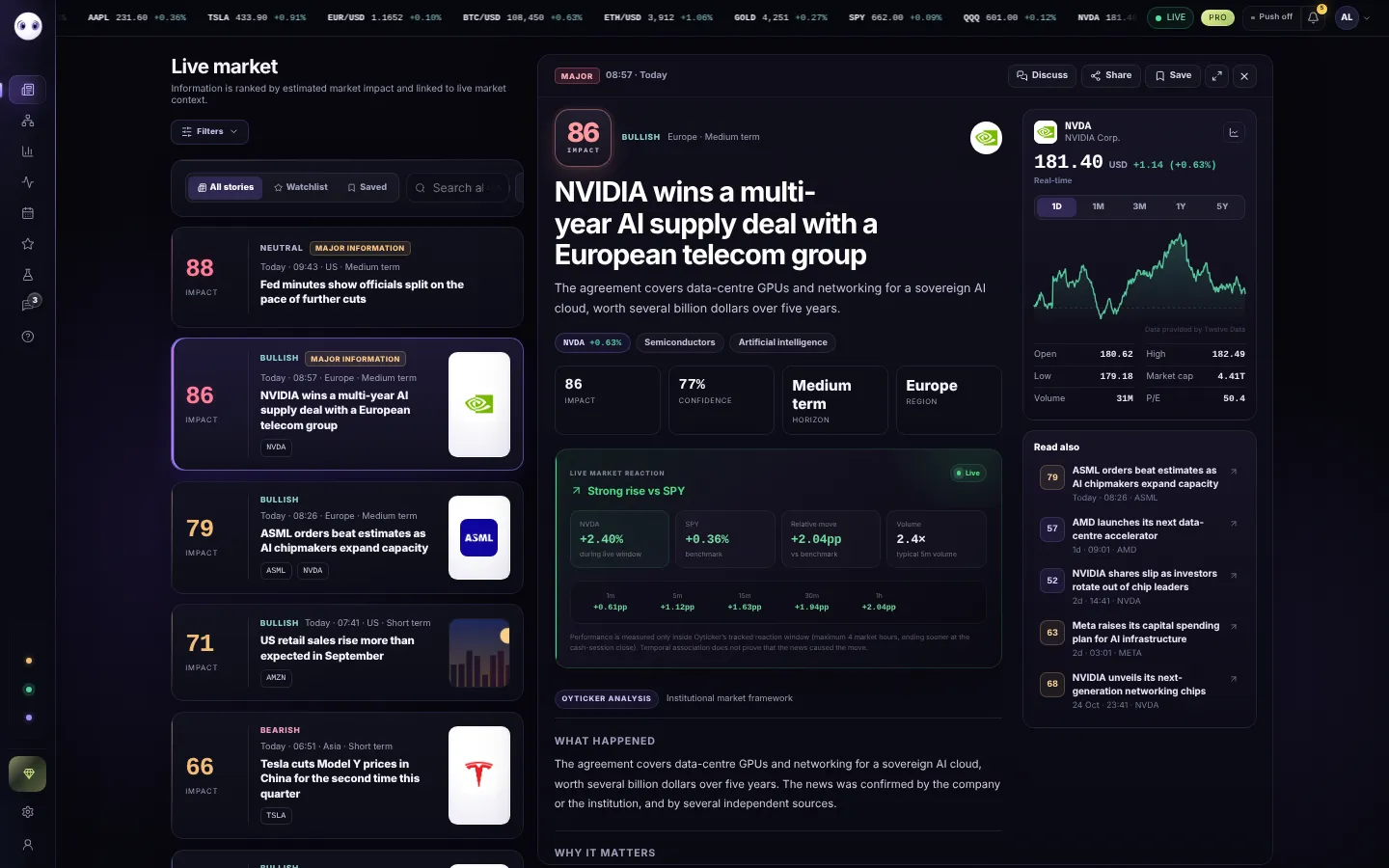
- The listNarrowed on the left; the story you read is highlighted.
- HeadImpact, tone, region and horizon, the title and the summary.
- TickersEach ticker shows its day's change; click it to open it in Charts.
- Market reactionThe move of the market since the story, minute by minute up to 4 hours, against its benchmark.
- Market columnThe price and chart of the market concerned (1D to 5Y), with its key figures. Other tickers of the story are listed below it.
- Share, Save, full screen, closeCopy the link or post it; save the story for later; read it full width; close the panel.
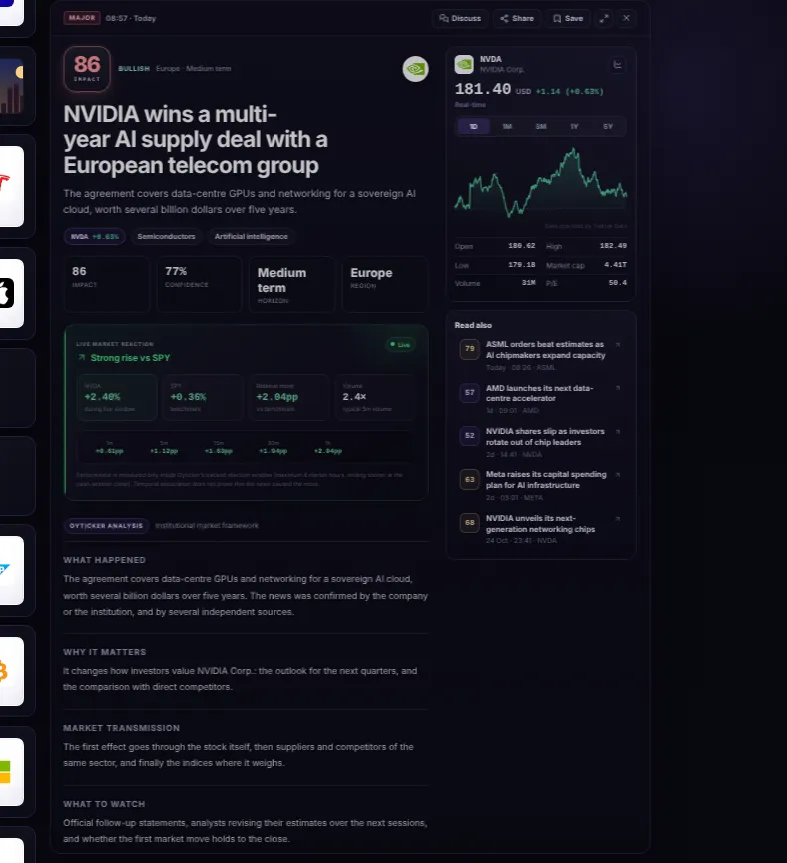
- Oyticker analysisEvery story is explained in four parts.
- What happened, why it matters…What happened, Why it matters, Market transmission (how the effect spreads from one market to others) and What to watch next.
- Read alsoUp to five stories on the same tickers, then the latest ones.
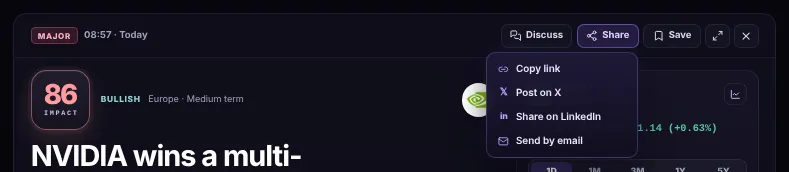
- ShareCopy the link, post it on X or LinkedIn, or send it by email.
- SaveKeeps the story in Saved (up to 500), on every device.
Saved stories
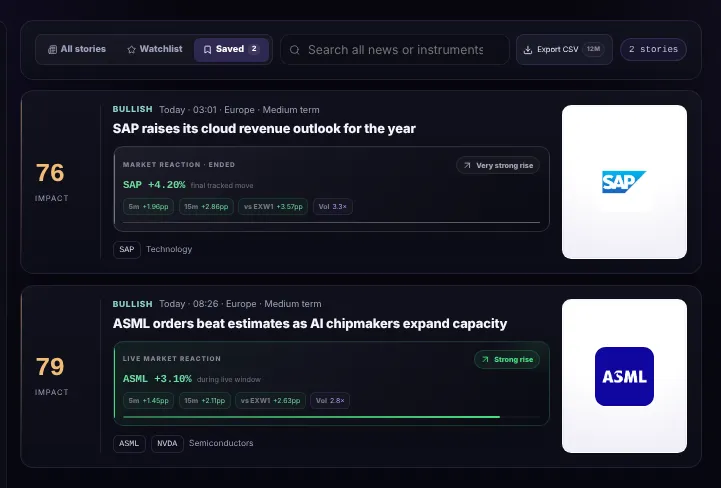
- SavedYour saved stories, most recently saved first. The number counts them.
- Saved storyOpen it as usual; use Save again in the story to remove it.
Free, Plus and Pro
Every plan gets the Feed in real time. The differences are the history and the major stories:
- Free: the last 14 days; stories of impact 70 or more open 10 minutes after they come out, those of 80 or more after 2 hours. Until then they show as locked cards.
- Plus: every story as it is published, and 6 months of history.
- Pro: every story as it is published, the full archive and the CSV export.

- Major storyOnly its impact shows while it is locked.
- Opens in…The time left before Free members can read it.
- See PlusPlus and Pro open it at once.
Screenshots use simulated prices and stories.